Start with the task, location and existing setup
A useful technology shortlist begins with what the device must do and where it will be used. Write down the regular tasks, the applications or services involved, whether the device stays on a desk or travels, and who needs to operate it. Then list equipment that must continue to work, such as a monitor, printer, camera, headphones, storage drive, router or game controller. This turns broad categories into practical requirements. Compare a laptop, desktop and tablet by the complete setup rather than portability alone. A laptop combines screen, keyboard and battery in one folding unit; a desktop separates the computer from its display and controls and may offer more accessible internal expansion; a tablet centres on touch input and may need a separate keyboard, stand or adapter. Check whether the required applications support the chosen operating system and input method. A camera used with existing lenses also needs compatibility checks that a first-time camera does not. Keep optional preferences separate from essentials so missing basics are easy to spot.
Record exact model and variation details
Technology listings often combine several models, storage capacities, screen sizes, colours or generations. Copy the complete model code and selected variation before comparing specifications. A family name alone may cover devices with different ports, processors, cameras, wireless support or included accessories. Recheck the selected controls after following a link because the main photograph or heading may remain the same while the variation changes. Manufacturer support pages, manuals and compatibility lists should match the exact code being considered. If two sources disagree, do not merge their details into an imagined configuration. Treat an unspecified feature as unknown until it is confirmed for that model and region.
Check connections from both ends
Make a list of the plugs and wireless connections used by existing equipment. Name the connector at both ends of every important cable: for example, the device port and the monitor or accessory port. Similar-looking connectors can support different functions, and a port may handle data, charging, display output or only some of those. Check the maker’s specification for the exact model. If an adapter or dock is needed, include its own power, display and data limits in the comparison. For wireless accessories, confirm the standard, required software and supported operating systems. Do not assume that a newer connector automatically makes an older peripheral compatible.
Compare screens and controls in the intended position
Screen size is only one part of the physical setup. Check overall device dimensions, resolution, panel finish, hinge or stand movement and the ports that may be blocked when the device sits close to a wall. For televisions and monitors, include the stand width and mounting pattern where relevant. For laptops, compare keyboard layout, trackpad, webcam position and whether a numeric keypad changes key spacing. Cameras need accessible controls and a display that works with the planned shooting position. Smart speakers and small devices may rely mainly on an app or voice controls, so confirm how essential settings are changed and whether another compatible device is required.
Understand memory, storage and expansion separately
Memory and storage describe different resources and should not be combined into one number. Record each as stated for the exact configuration. Check whether storage is built in, removable or expandable, and what format or capacity limits the maker specifies. Cloud storage may require an account, connection and ongoing terms; it does not replace the need to understand local capacity. For cameras, note the supported card type and whether a card is included. For computers, check whether memory or storage can be upgraded and whether doing so affects support terms. External drives also need the right connector, power arrangement, file-system support and a backup plan.
Plan power and charging without assumptions
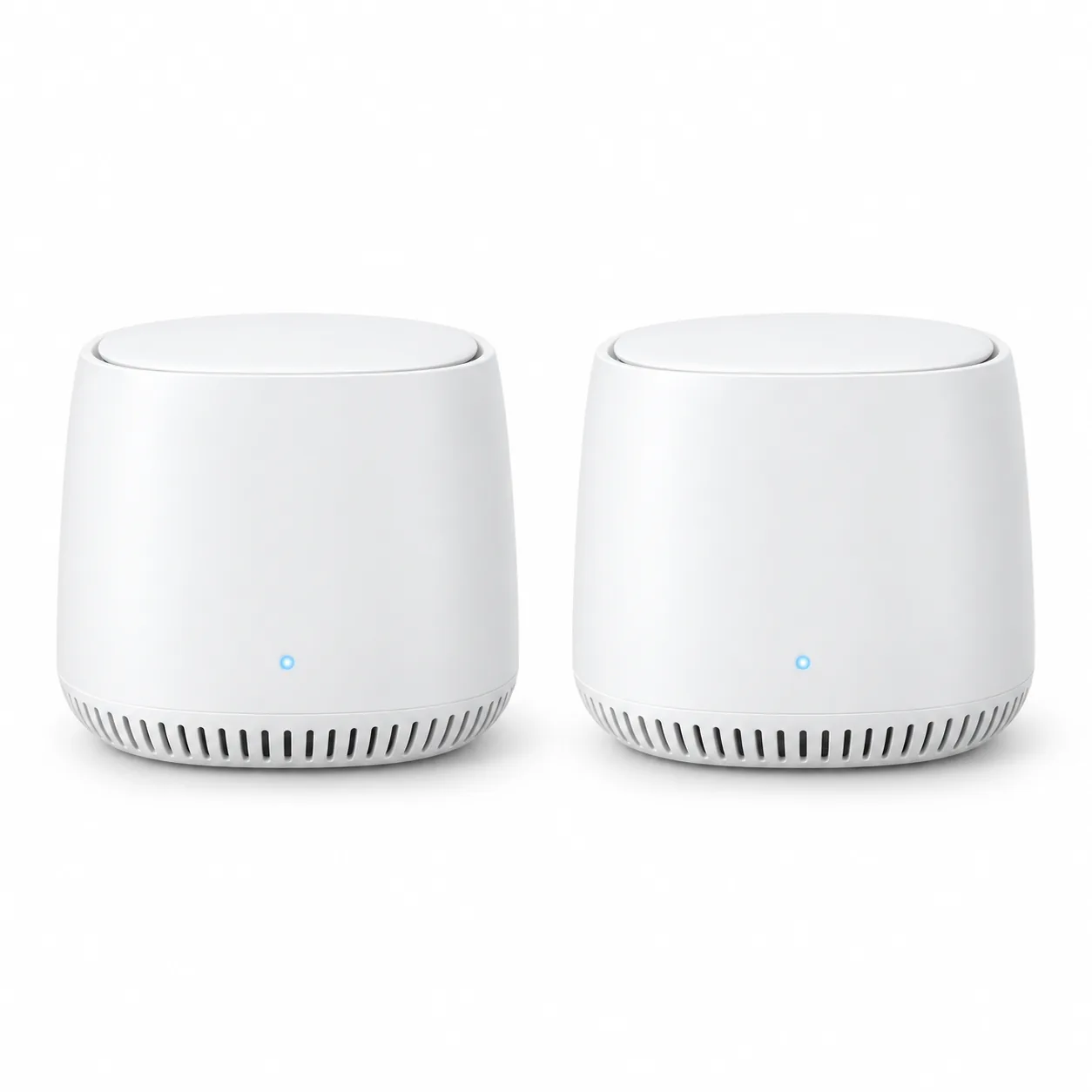
Read the supplied-power section of the listing and manual. Confirm whether a charger, cable, mains lead or power adapter is included, and whether it is the correct regional version. A shared connector shape does not guarantee that every charger provides the required power or protocol. For portable devices, compare the stated battery arrangement, charging port and replaceability information without treating an advertised runtime as a promise for every use. A mesh Wi-Fi node or smart speaker may need continuous mains power even though its network or audio connection is wireless. Consider socket location, cable reach and ventilation in the final position, and follow the manufacturer’s guidance for charging and power accessories.
Check network and account requirements
Connected products may depend on a particular Wi-Fi band, mobile app, account, subscription or online service. Verify those requirements before treating a feature as available. Check whether initial setup needs a phone, whether each household user requires an account and what happens to basic functions when the internet is unavailable. Routers and mesh systems need compatible broadband equipment and a planned position for each unit; building layout can affect coverage, so avoid assuming a stated area will match every home. For cameras, speakers and smart devices, review how recordings or commands are stored, which permissions are requested and how household members can control access.
Review software support and privacy controls
Look for the manufacturer’s current support information for the exact model, including operating-system compatibility, security updates and required applications. Do not infer a support period from another device in the same range. Check whether setup can be completed with the accounts you are willing to use, which data-sharing controls are available and how the device can be reset before resale or return. Products with microphones, cameras, location services or cloud recording deserve a clear placement and permission plan. If a feature relies on a third-party service, read its current terms separately because the hardware listing may not describe every dependency.
Measure the complete physical arrangement
Record the product’s width, depth and height with stands, plugs and opened parts included. A laptop needs space for its screen angle and connected cables. A desktop computer needs ventilation and access to ports. A projector needs a suitable throw position, power and a route for the image and cables. A printer needs clearance for paper trays and doors. Cameras, lights and microphones may require stands or mounts that enlarge the setup. If a device travels, check its actual weight together with the charger, case and adapters. Packaged dimensions and weight matter for delivery and returns, while product dimensions determine whether the final arrangement fits.
List what is included and what must be added
Photographs often show a complete scene rather than the contents of the box. Use the written “included” list to identify cables, chargers, batteries, remotes, stands, mounts, storage cards, cases and software. Note anything described as optional or sold separately. A low initial part count can grow once the correct adapter, cable or mounting hardware is added. Conversely, avoid buying duplicate accessories that are already supplied. Check whether an included trial becomes a paid subscription and whether a bundled application is permanent or time limited. For replacement accessories, use the exact model’s compatibility information rather than relying on a shared brand name.
Use manuals and support pages to resolve unclear listings
A product manual can reveal port functions, setup sequence, supported formats, mounting limits, ventilation clearances and reset procedures more clearly than a sales summary. Match the document to the full model code and region. Look for a support page that still provides downloads, updates and contact routes. If the listing uses a broad range name, confirm which manual applies to the selected variation. Keep copies of important setup information and the purchase record. For refurbished or marketplace items, check which original accessories are present and how the seller’s stated condition affects support. Do not fill documentation gaps with details copied from a neighbouring model.
Compare delivery, returns and warranty terms for the selected item
Current delivery, return and warranty information belongs to the exact seller, item condition and selected variation. Check who sells and dispatches the item, where returns go, which accessories and packaging must be retained, and whether setup or activation changes the return process. For large screens, desktop equipment or printers, consider how the package will enter the property and be kept during the checking period. Manufacturer warranty terms and retailer return terms are separate, so read both where they matter. Record the model and serial number when the product arrives, inspect the contents against the list and test essential functions using the supplied instructions.
Make the final shortlist easy to verify
Use one row per exact model and one column per essential requirement. Include model code, selected variation, dimensions, weight, screen or control format, ports, wireless standards, power supply, required accounts, included accessories, supported software and current seller terms. Leave blanks when information is unavailable rather than copying a claim from a similar product. Then compare only the requirements that affect the intended setup. This method keeps attention on compatibility and everyday use, makes later rechecking straightforward and avoids turning a long specification list into unsupported conclusions about performance.