Improving your Wi Fi coverage and eliminating signal dead zones ensures every room in your UK home enjoys a stable and reliable internet connection for all devices.
Read More
To fix Wi Fi dead zones, start by moving your router to a central, elevated position. If coverage remains poor, add a mesh system or powerline adapters to extend the signal through walls. These tools help bypass physical barriers, ensuring every room in your home gets a reliable and stable connection.
How To Identify Where Wi Fi Coverage Fails
Finding the root cause of poor connectivity starts by mapping your home layout. Walk through each room while monitoring the signal strength on a mobile device or laptop. Note where the connection drops or becomes sluggish. Thick interior walls, large metal appliances, and mirrors often act as barriers to radio waves. By identifying these physical obstructions, you can better understand why specific areas suffer from limited reach. Consider the placement of your main router in relation to these obstacles. If the device sits in a cupboard or behind a television, the signal will struggle to penetrate surrounding structures. Moving the hub to a central, elevated position often provides an immediate improvement in range. Clear the area of clutter to allow the signal to radiate freely across your living space without unnecessary interference from dense materials.
Why Your Router Placement Matters For Signal Strength
The location of your primary wireless hub is the most significant factor in maintaining network health. Placing the unit on a high shelf or a wall mount helps the signal travel downward and outward across the floor plan. Avoid tucking the equipment into corners or behind furniture, as these positions force the signal to pass through multiple solid objects before reaching your devices. If your property has multiple floors, a central location on the ground floor is usually superior to a position on the top landing. Keeping the router away from other electronic devices, such as cordless phones or baby monitors, prevents frequency overlap that can degrade performance. A clear line of sight to high traffic areas like the lounge or study ensures that bandwidth is directed where it is needed most for daily tasks and streaming.
Which Mesh Wi Fi Systems Are Best For Larger Homes
For properties that span several floors or have unconventional layouts, a mesh system offers a robust solution. Unlike traditional extenders, mesh units work together as a single unified network. You place satellite nodes in different rooms, and they communicate to provide seamless coverage across the entire building. This approach removes the need to manually switch networks as you move from the kitchen to the bedroom. When setting these up, ensure each node is within range of the primary unit to maintain a strong backhaul connection. This technology is particularly effective for thick brick walls common in older UK homes. By creating a web of access points, you ensure that every corner of the house receives a consistent signal, effectively eliminating those frustrating pockets where the internet simply refuses to function properly.
How Powerline Adapters Use Electrical Wiring
Powerline adapters provide an alternative method for extending your network by using existing electrical cabling within your walls. This kit consists of two plugs: one connects to your router and a wall socket, while the other sits in the room where you need better connectivity. This bypasses the physical walls that typically block wireless signals. It is an excellent choice for home offices or gaming setups where a wired connection is preferred for stability. Performance depends on the quality of your home wiring and the distance between the two sockets. Avoid using extension leads or surge protectors with these adapters, as they can filter out the data signal. When installed correctly, this method delivers a reliable link that is largely unaffected by the distance from the main router or the density of your home structure.
When Should You Use Wireless Access Points
Wireless access points are professional grade solutions for those who require maximum speed and coverage. Unlike simple extenders, these devices connect to your router via an ethernet cable, ensuring that the signal they broadcast is as fast as your main connection. This requires some planning, as you must run cables through your walls or under floorboards to reach the desired location. Once installed, these points act as powerful beacons that provide full bandwidth to the surrounding area. They are ideal for large open plan spaces or detached garden offices where Wi Fi signals struggle to reach. By offloading the wireless traffic from the main router, you keep the network running smoothly even when multiple family members are using high bandwidth applications simultaneously. It is a permanent fix for demanding home network requirements.
How To Reduce Interference From Other Electronic Devices
Wireless networks operate on specific frequencies that can be crowded by common household electronics. Devices like microwaves, cordless phones, and even smart home gadgets can cause significant disruption to your signal if they are too close to your router. Check if your router supports dual band or tri band operation, which allows you to switch devices to different frequencies to avoid congestion. The five gigahertz band is generally faster but has a shorter range, while the two point four gigahertz band travels further but is more susceptible to interference. By separating your equipment across these bands, you can maintain a more stable connection. Regularly checking for firmware updates on your router can also help it manage traffic more efficiently and improve its ability to handle interference from external sources in your local environment.
Which Settings Improve Your Wireless Network Stability
Adjusting the internal settings of your router can often resolve persistent connectivity issues without the need for new hardware. Access the administration panel to check the wireless channel settings. If your neighbours are using the same channel, it can lead to signal overlap and reduced speeds. Most modern routers can automatically select the least congested channel, but manually testing different options can sometimes yield better results. Additionally, consider disabling older wireless protocols if your current devices do not require them, as this can streamline communications. Ensure that your security settings are robust, as unauthorised users on your network can consume bandwidth and slow down your connection. A simple reboot of the router every few weeks can also clear temporary memory issues that build up over time, keeping your home network running at peak performance.
How To Properly Arrange Your Home Office Connectivity
Establishing a reliable connection for a home office is essential for productivity. If you rely on video calls and large file transfers, a weak Wi Fi signal is not acceptable. Position your desk as close to a wireless access point or router as possible, or use a wired ethernet connection for maximum stability. If your office is in a converted loft or garage, dedicated hardware like a mesh node or a high quality powerline adapter is highly recommended. Test the connection during peak usage times to see if performance remains steady. By prioritising the office space in your network planning, you ensure that your work tasks are not interrupted by other users in the home. Keep cables tidy and avoid crossing them with power lines to prevent electromagnetic noise from affecting the data transmission quality.
Products To Compare
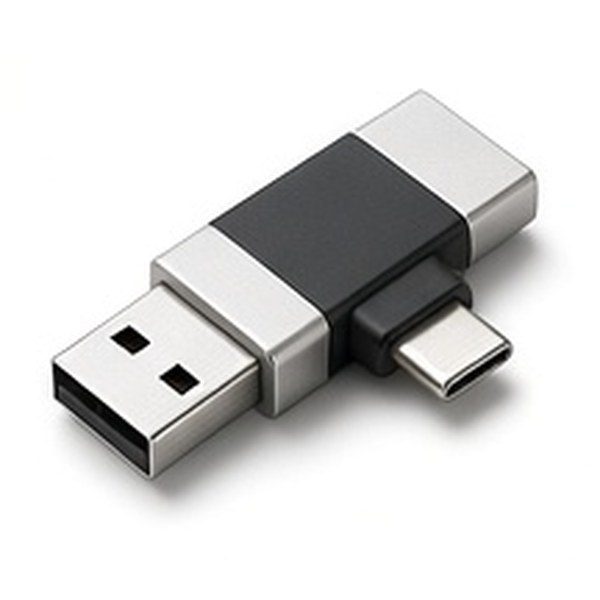
Dual USB A And USB C Flash Drives
Check the total coverage area and the number of satellite units included.
COMPARE OPTIONS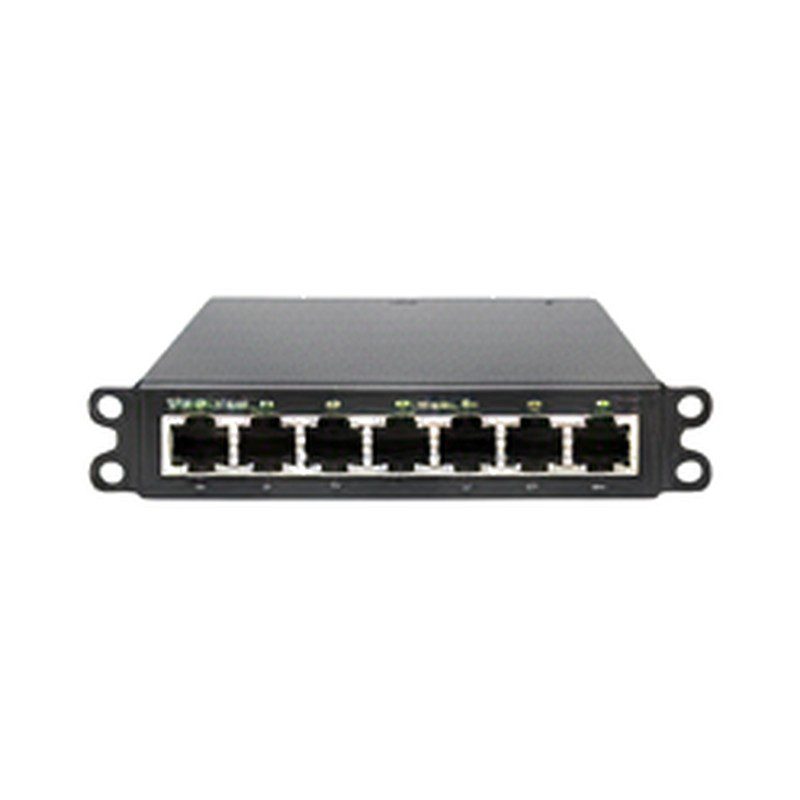
Gigabit Network Switches
Compare the listed size, the build and what is included with these gigabit network switches.
COMPARE OPTIONS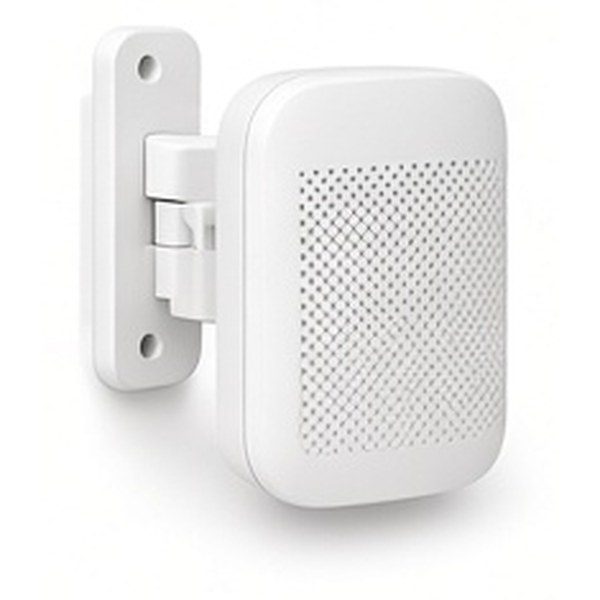
Outdoor Wi Fi Access Points
A good pick if outdoor wi-fi access points suit the space and the way you plan to use them.
COMPARE OPTIONS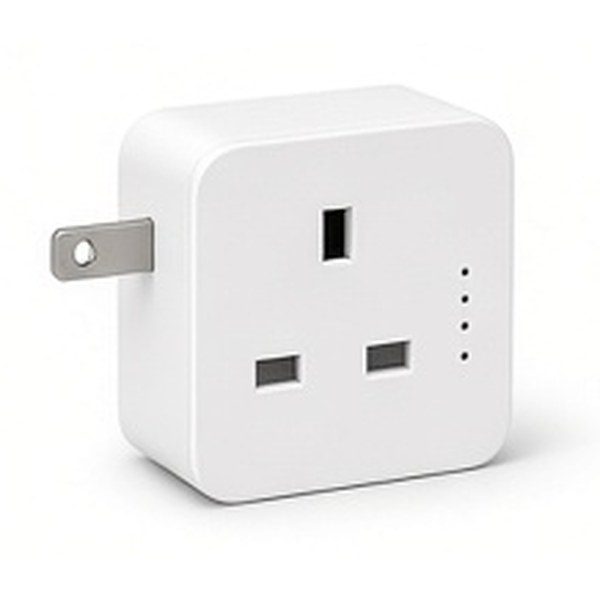
Wi Fi Powerline Adapters
Compare the size, the build and what comes in the box for wi-fi powerline adapters.
COMPARE OPTIONS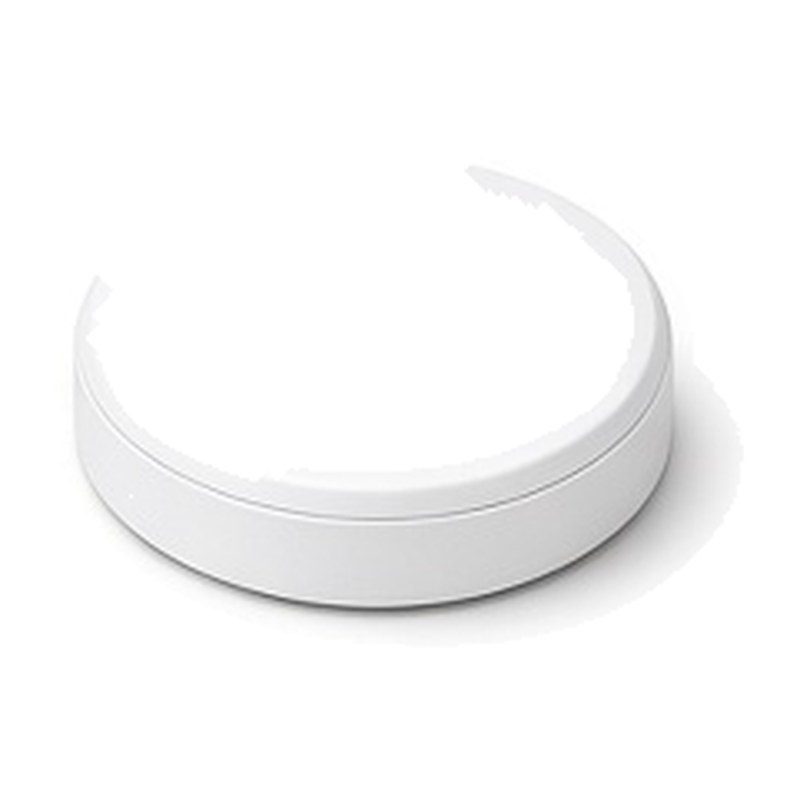
Ceiling Wi Fi Access Points
Worth a look when you want ceiling wi-fi access points that match the rest of your setup.
COMPARE OPTIONS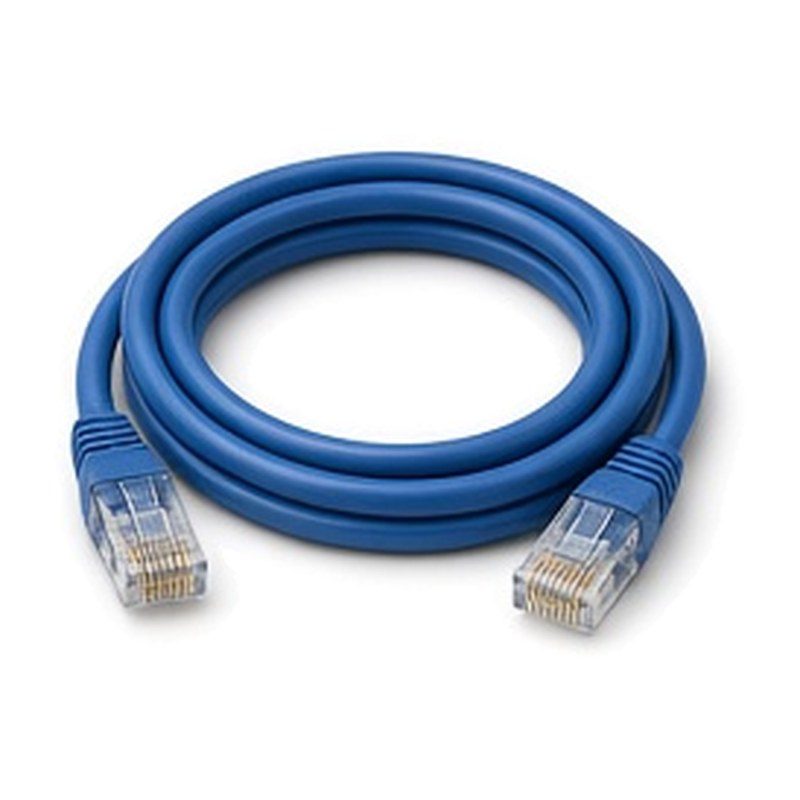
Ethernet Network Cables
Read the listed size and fittings before choosing ethernet network cables.
COMPARE OPTIONS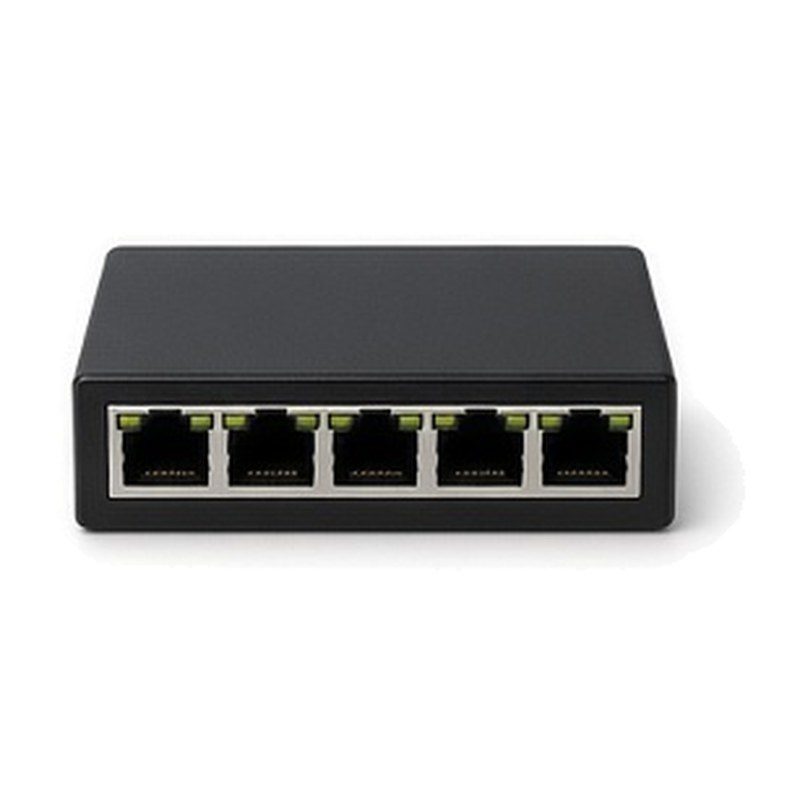
5 Port Ethernet Switches
Handy if you want 5-port ethernet switches with a simple, practical design.
COMPARE OPTIONS
Before Choosing
- Verify that your router firmware is current to ensure optimal performance.
- Ensure that no large metallic objects are blocking the signal path.
- Test your internet speed in every room to create a signal map.
- Check that all ethernet cables are securely plugged into their ports.
Questions Shoppers Ask
How Do I Know If I Have A Wi Fi Dead Zone?
A dead zone is identified when your device loses connection or shows very low signal bars in specific areas of your home. You will notice that web pages fail to load or streaming services constantly buffer when you move into these particular locations.
Can Thick Walls Block My Wi Fi Signal?
Yes, dense materials like brick, stone, or concrete act as significant barriers to wireless signals. These structures absorb the radio waves, making it difficult for the signal to pass through to other rooms, which often leads to poor connectivity in older properties.
Does The Number Of Devices Affect My Speed?
Yes, having many devices connected simultaneously can strain your network bandwidth. Each active device competes for data, which can result in slower speeds for everyone. Prioritising essential equipment or upgrading to a more capable router can help manage this high demand effectively.
Are Powerline Adapters Better Than Wi Fi Extenders?
Powerline adapters are often more stable because they use your home electrical wiring instead of wireless signals. This makes them ideal for rooms separated by thick walls. Extenders are better for open spaces where you simply need to stretch the existing wireless range further.
How Often Should I Restart My Router?
Restarting your router every few weeks is a good practice to clear temporary cache and resolve minor software glitches. This simple action can often restore speed and stability without needing to change any settings or purchase additional equipment for your home network.
What Is The Best Frequency For My Devices?
The five gigahertz frequency offers faster speeds but has a shorter range, making it best for devices near the router. The two point four gigahertz frequency travels further through walls, making it better for devices located in distant rooms or through multiple obstacles.