Upgrade your daily office setup with this essential Ergonomic Workspace Peripherals Buying Checklist to improve your comfort and focus during long periods of desk work.
Read More
To build an ergonomic workspace, focus on choosing peripherals that allow you to maintain a neutral posture. Prioritise adjustable stands for your screen, a mouse that fits your hand, and a keyboard that keeps your shoulders aligned. Ensure all devices are compatible with your computer to avoid unnecessary connectivity issues.
Which Adjustable Laptop Stands Are Best For Posture?
Selecting an adjustable laptop stand requires careful consideration of your desk height and monitor placement. Look for models that provide a wide range of tilt angles to align your screen with your eye level. A stable base is vital to prevent wobbling while typing on the built-in keyboard. Check the listing for the maximum weight capacity to ensure it supports your specific machine. Some designs feature open frames to encourage airflow, which helps keep internal components cool during intensive tasks. Consider the footprint of the stand on your desk surface to maintain enough space for other tools. Materials vary from lightweight aluminium to robust steel, each offering different levels of portability. Evaluate the locking mechanisms to ensure the stand remains fixed in your desired position throughout the working day.
How To Choose Wireless Mice For Daily Tasks?
A wireless mouse should fit the natural curve of your hand to reduce strain during repetitive movements. Examine the grip style, whether you prefer a palm or claw hold, as this dictates the ideal shape and size of the peripheral. Sensor sensitivity is another key factor, as it determines how much physical movement is needed to navigate the cursor across your screen. Connectivity methods vary between radio frequency receivers and Bluetooth, so verify compatibility with your computer ports. Look for programmable buttons that allow you to assign shortcuts for common software functions. Battery life is a practical consideration, with options ranging from rechargeable internal cells to replaceable standard batteries. A smooth glide surface on the underside ensures the device moves effortlessly across your desk or mouse mat.
Why Use Compact Wireless Keyboards In Small Offices?
Compact wireless keyboards save valuable desk space by omitting the traditional number pad, which brings your mouse closer to your body. This layout helps keep your shoulders in a more neutral position while you work. When choosing a model, focus on the key travel distance and the tactile feedback provided by each press. Low profile keys are often preferred for quick typing, while mechanical switches offer a distinct click and deeper response. Check the listing for wireless range capabilities to ensure a stable connection even if your computer is tucked away. Some keyboards offer multi device pairing, allowing you to switch between a laptop and a tablet with a single button. Examine the build quality to ensure the frame does not flex under pressure during heavy use.
What Features Define High Quality Headsets With Microphones?
Clear communication during video calls depends on the quality of your headset and its integrated microphone. Look for noise cancelling technology that isolates your voice from background sounds in your room. Comfort is paramount for long sessions, so evaluate the padding on the ear cups and the adjustability of the headband. Wired connections provide a consistent signal, while wireless options offer freedom of movement around your workspace. Check the microphone boom arm for flexibility, allowing you to position it perfectly for optimal audio pickup. Consider the weight of the unit, as lighter materials often lead to less fatigue over several hours. Controls located on the wire or the ear cup enable you to adjust volume or mute your microphone quickly without touching your computer settings.
Are USB C Docking Stations Useful For Desk Connectivity?
A docking station acts as a central hub for all your peripherals, simplifying the process of connecting your laptop to monitors and accessories. Verify the number and type of ports available, such as video outputs, data transfer slots, and power delivery capabilities. Ensure the station supports the resolution and refresh rate of your external displays. The power delivery feature is essential for charging your laptop through a single cable, reducing clutter on your desk surface. Check the listing for compatibility with your specific operating system to ensure all ports function correctly. A sturdy build with heat dissipation features is important for devices that remain connected for extended periods. Consider the length of the integrated cable to ensure it reaches your laptop comfortably from its position on the desk.
How Do Laptop Cooling Pads Prevent Overheating?
Laptop cooling pads provide an active or passive way to manage temperatures during demanding tasks. Active pads include built in fans that draw heat away from the chassis, while passive stands simply elevate the machine to improve natural airflow. When choosing an active model, check the fan speed controls and the noise levels produced during operation. The size of the cooling pad should match your laptop dimensions to ensure the vents are not obstructed. Consider the power source, as most units connect via a spare port on your machine. Some cooling pads include extra ports to replace the one used for power. Examine the surface material, as metal meshes often conduct heat better than plastic alternatives, aiding the overall cooling efficiency of your workstation.
When Should You Use External Hard Drives For Storage?
External storage is a reliable way to keep your files accessible and backed up without filling your internal drive. For frequent travel, pocket sized portable drives offer durability and high speed data transfer. Desktop versions are better suited for permanent desk setups, providing larger capacities and usually requiring a separate power source. Check the listing for the interface type to ensure it matches the speed requirements of your workflow. Encrypted models provide an added layer of protection for sensitive information. Consider the build quality, especially for drives that might be moved between different locations. Evaluate the software included for automatic backups to ensure your data remains secure without manual intervention. Reliability is the most important factor, so look for drives designed for consistent performance over time.
Which Ethernet Network Cables Ensure Stable Connections?
While Wi Fi is convenient, an Ethernet cable provides a more stable and direct connection for your computer. This is especially important for video conferencing or large file transfers where speed consistency matters. Look for different categories of cables, with higher numbers generally supporting faster data rates. The length of the cable should be sufficient to reach from your router to your desk without being excessively long, which can create unnecessary clutter. Check the listing for shielding, which helps prevent signal interference from other electronic devices nearby. The connectors at each end should have a secure locking mechanism to prevent accidental disconnection. Consider flat cable designs if you need to route them under rugs or along tight edges in your office to keep your workspace tidy.
Products To Compare
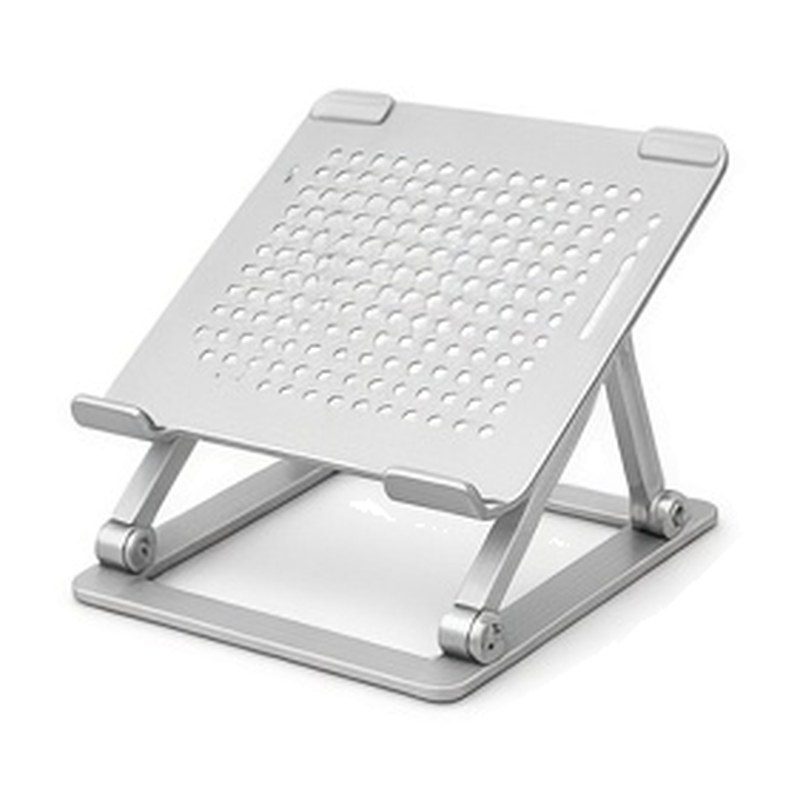
Adjustable Laptop Stands
Check the maximum height adjustment and the weight limit of the base.
COMPARE OPTIONS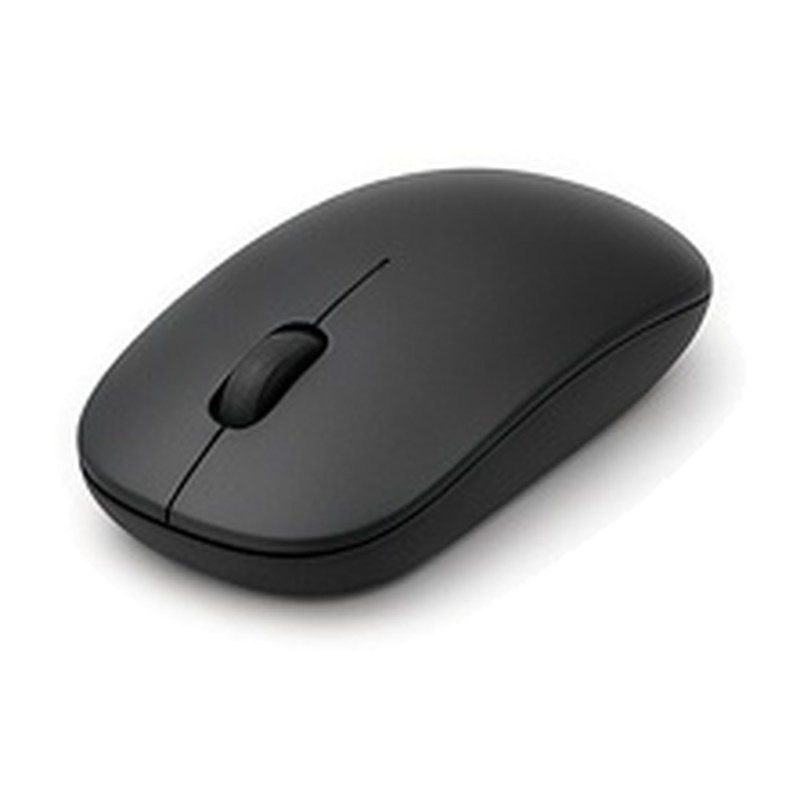
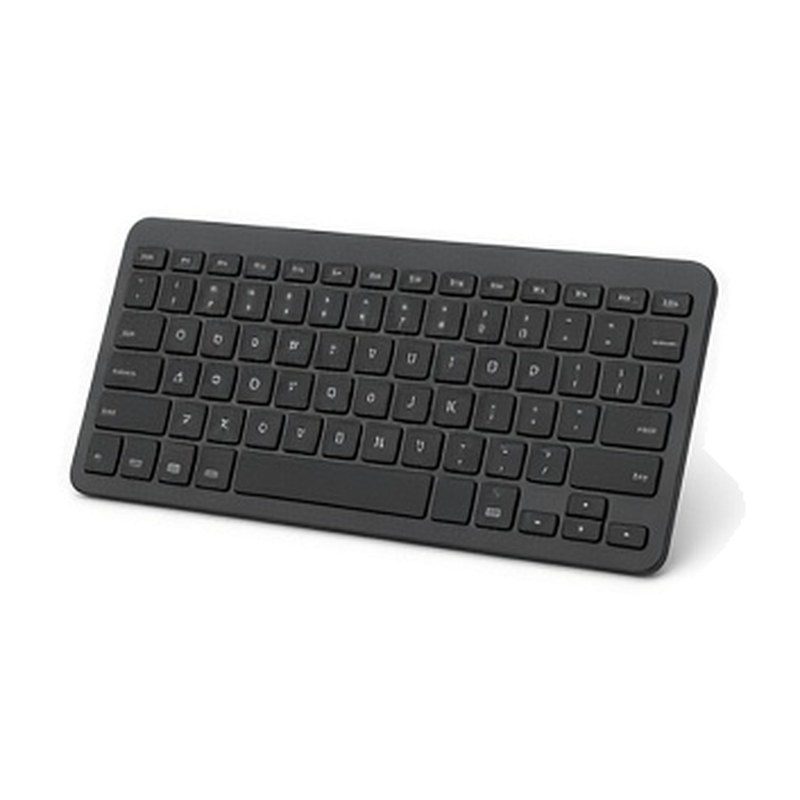
Compact Wireless Keyboards
Verify the key travel distance and the multi device pairing support.
COMPARE OPTIONS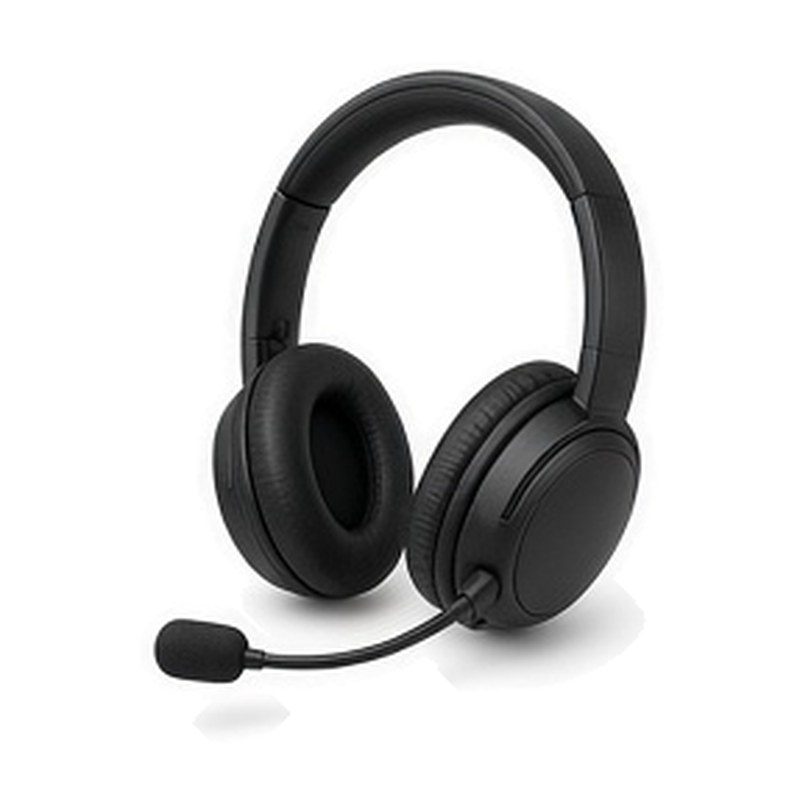
Headsets With Microphones
Check the ear cup padding material and the microphone boom flexibility.
COMPARE OPTIONS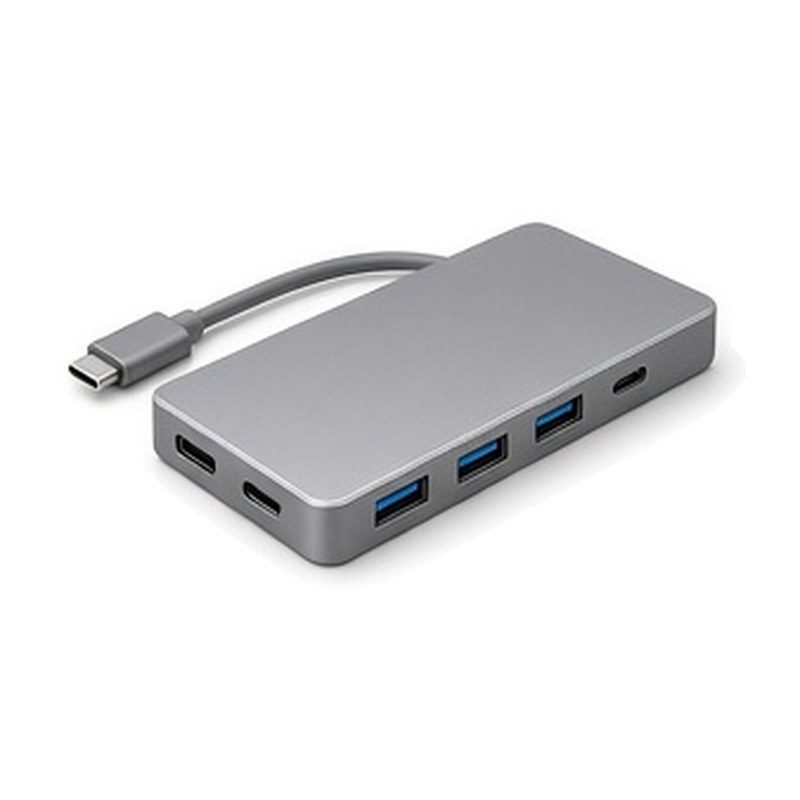
USB C Docking Stations
Compare the number of video ports and the power delivery wattage.
COMPARE OPTIONS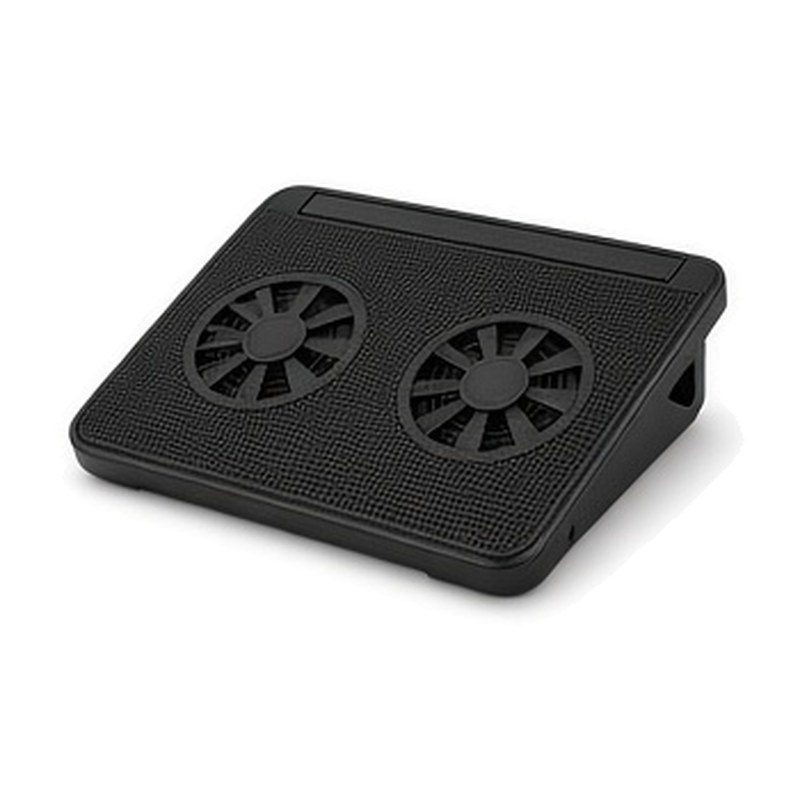
Laptop Cooling Pads
Look at the fan speed settings and the total surface area coverage.
COMPARE OPTIONS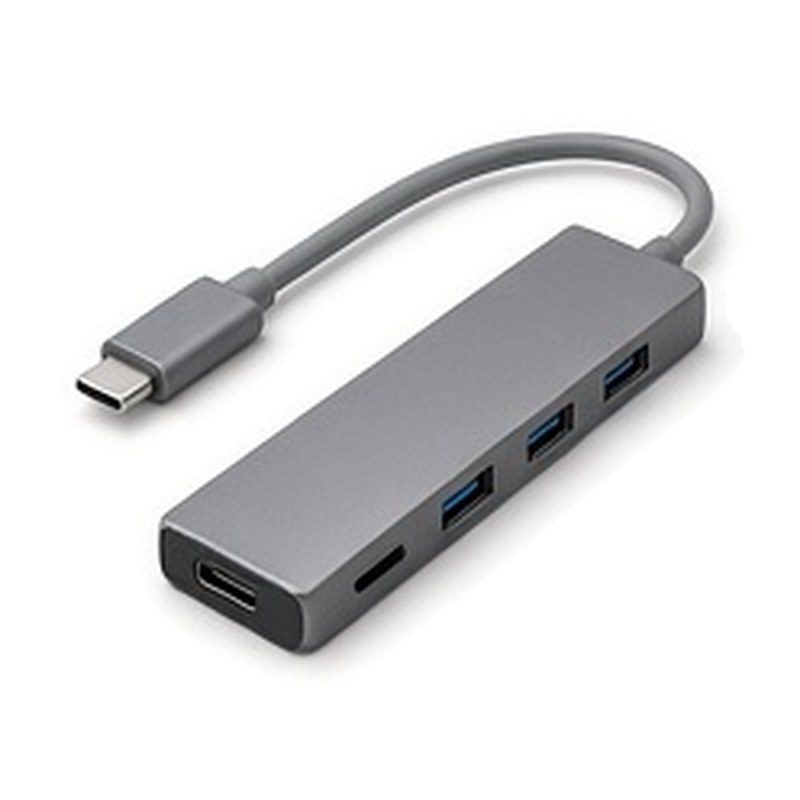
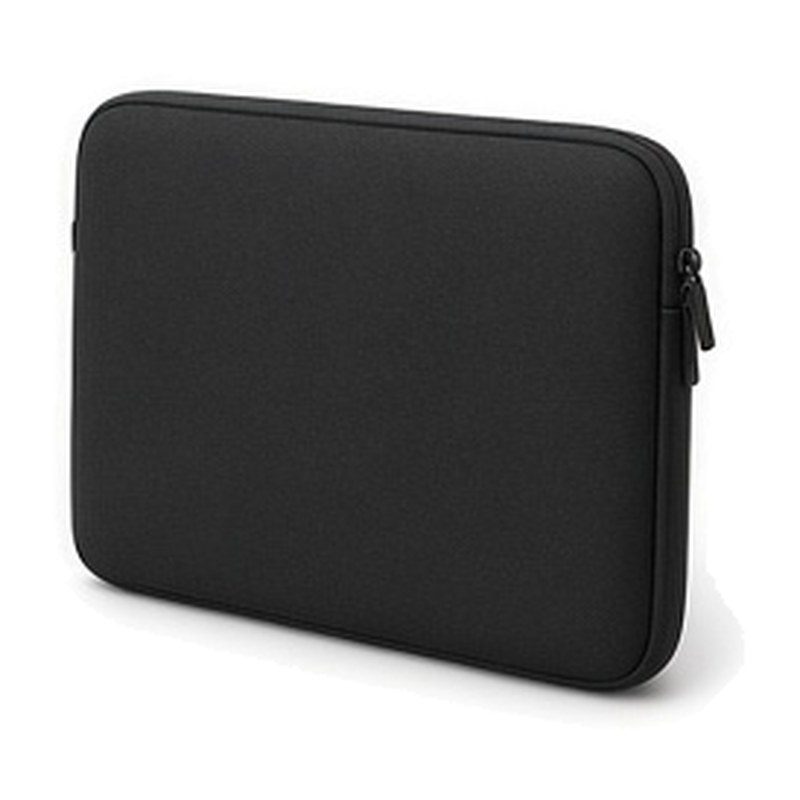
Padded Laptop Sleeves
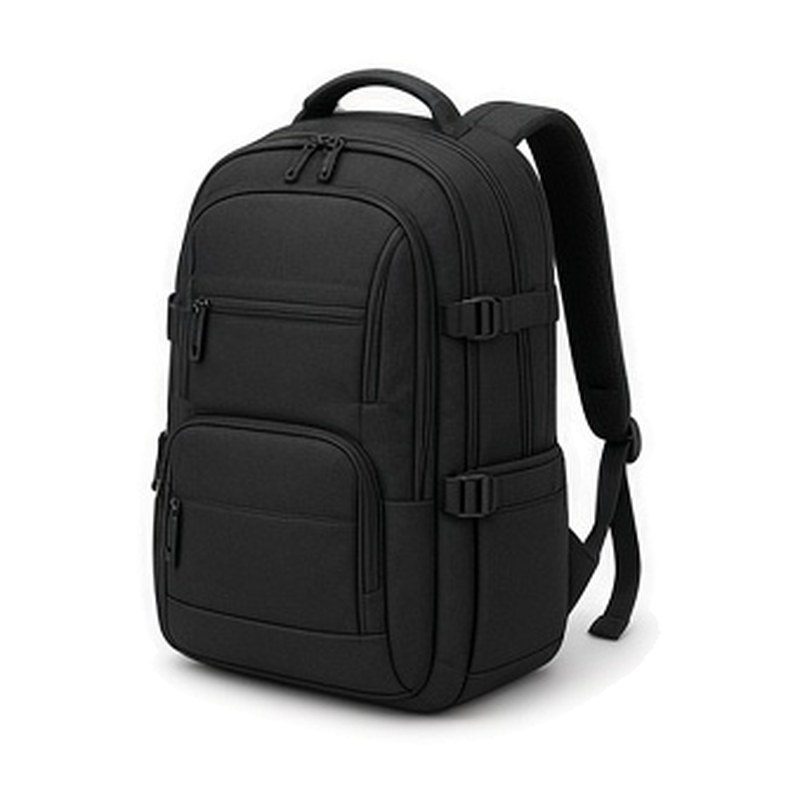
Look at the internal lining material and the zipper durability.
COMPARE OPTIONS
Console Cooling Stands
Compare the listed size, the build and what is included with these console-cooling-stands.
COMPARE OPTIONSBefore Choosing
- Confirm the peripheral connects to your current computer ports without needing extra adapters.
- Measure your available desk space to ensure the device does not clutter your primary work area.
- Verify that the material used in the construction matches your preference for durability versus weight.
- Check if the peripheral requires specific software installation to enable all its programmable features.
Questions Shoppers Ask
How Can You Determine If A Peripheral Is Ergonomic?
An ergonomic peripheral is designed to support your natural posture during use. Look for adjustable settings that allow you to customise the fit to your body. If a device requires you to strain your wrist or reach awkwardly, it may not be suitable for your specific desk setup.
Do Wireless Peripherals Require Frequent Charging?
Battery life varies significantly between different models and usage patterns. Some devices offer months of operation on a single charge, while others need more regular attention. Check the listing for the estimated battery duration to understand how often you will need to connect the device to power.
Is It Better To Use A Docking Station Or Separate Hubs?
A docking station offers a more permanent solution for managing multiple cables and devices at once. Separate hubs are often more portable if you frequently move your laptop between different rooms. Consider your typical workflow to decide which option keeps your desk surface tidier and more functional.
How Do You Ensure Compatibility With Your Laptop?
Always check the port requirements of the peripheral against the available connections on your laptop. While many modern devices use standard interfaces, some require specific types of ports for full performance. Reviewing the technical details in the listing will help you avoid connectivity problems before you purchase.
What Is The Benefit Of Using A Mechanical Keyboard?
Mechanical keyboards provide distinct tactile feedback that many people prefer for typing accuracy. They are generally more durable than membrane alternatives and allow for customisation of the key switches. This can help reduce the force needed to press each key, potentially increasing your typing comfort over time.
Are There Specific Features For A Quiet Office Environment?
If you work in a shared or quiet space, look for peripherals specifically marketed for silent operation. This includes mice with quiet click buttons and keyboards with soft touch keys. These features help reduce the audible noise generated by your equipment, allowing you to focus without disturbing others nearby.