Understanding the distinct SSD types helps you pick the right drive for speed, capacity and portability in the UK market.
Read More
There are three main types of SSDs: NVMe, SATA, and Portable. NVMe offers the highest speed for internal use. SATA is slower but cheaper and more compatible. Portable SSDs connect via USB for external use. Choose based on speed needs and compatibility.
How Many Types Of SSDs Exist
The storage landscape features several distinct categories rather than a single uniform standard. Most users encounter three primary forms based on interface and form factor. These include the modern NVMe drives, the older SATA drives, and the external portable units. Each category serves a different purpose within a computer setup. The internal drives focus on raw speed and system responsiveness. The external units prioritise data transfer between devices. It is important to distinguish between the interface protocol and the physical shape. A drive can be fast but incompatible if the connector does not match the motherboard slot. Understanding these broad categories prevents buying the wrong hardware. The market has evolved rapidly in recent years. Newer standards offer significantly higher throughput than legacy options. Shoppers should identify their primary use case first. Gaming, video editing, and general office work have different requirements. Selecting the correct type ensures optimal performance. This guide breaks down each category in detail. You will learn how to match the drive to your specific needs. There is no single best type for every situation. The right choice depends on your budget and hardware compatibility. We will explore the technical differences next.
NVMe SSD Types Explained In Detail
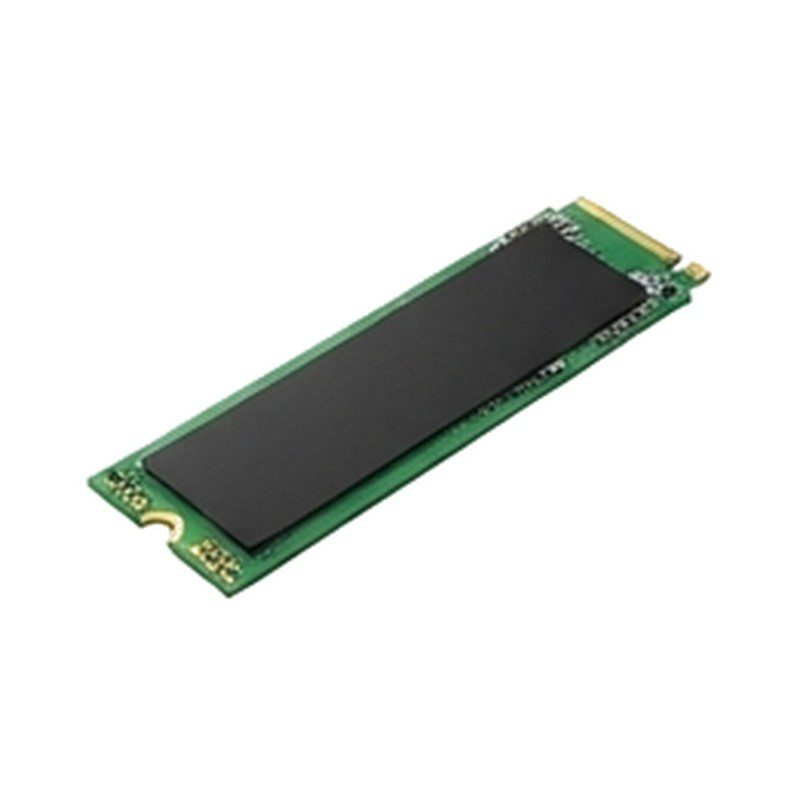
NVMe drives use the PCIe bus to communicate with the processor. This direct link reduces latency compared to older standards. The result is much faster read and write speeds. These drives are ideal for operating systems and large games. They reduce load times significantly. The physical form factor is usually a small M.2 stick. Some high-end models use U.2 connectors for servers. The M.2 form factor saves space inside compact laptops. You must check the slot type on your motherboard. Not all M.2 slots support NVMe protocols. Some slots are reserved for Wi-Fi cards or SATA drives. The length of the stick also matters. Common lengths are twenty-two and eighty millimetres. Ensure your chassis has enough clearance for the stick. NVMe drives generate more heat than SATA models. Adequate cooling is essential for sustained performance. Many motherboards include heat spreaders for this purpose. If your system lacks cooling, consider adding a fan. The speed advantage is substantial for heavy workloads. It is the preferred choice for modern builds. The technology continues to improve with each generation. Newer versions offer even higher bandwidth. This makes them future-proof for upcoming software demands.
Sata SSDs Vs Nvme Performance
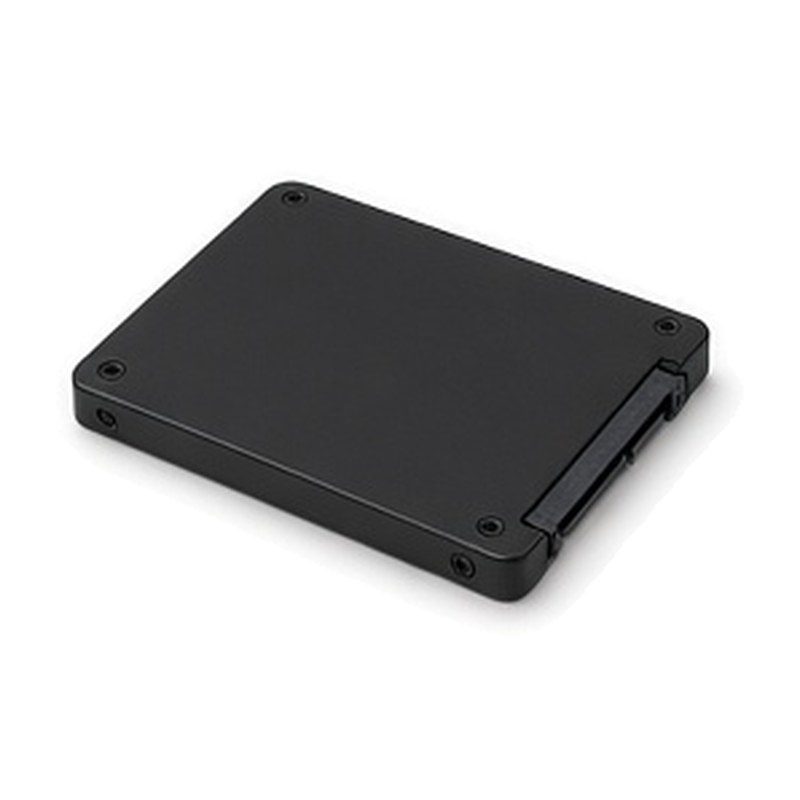
SATA drives use a parallel interface designed for hard disks. This design limits their maximum speed potential. The bottleneck is the SATA controller itself. Despite this limit, SATA SSDs are still very fast. They are much quicker than traditional hard drives. The price per gigabyte is often lower for SATA. This makes them good for secondary storage. They are ideal for storing large media libraries. The physical form factor is a two point five inch rectangle. This shape fits most desktop and laptop bays. Installation is straightforward with a single cable. You do not need special mounting hardware. The speed difference is noticeable in heavy file transfers. However, daily tasks feel similar on both types. The boot time difference is minimal for most users. SATA drives run cooler than NVMe options. This is an advantage in poorly ventilated cases. They are widely compatible with older systems. If you have an older laptop, SATA is likely your only option. Check the drive bay in your device manual. Some ultrabooks lack the space for two point five inch drives. The choice depends on your existing hardware setup.
Which Ssd Type Is Best For Laptops
Laptop storage constraints dictate the available options. Most modern laptops use M.2 slots for internal storage. This saves valuable space inside the thin chassis. The M.2 form factor is compact and efficient. It allows for larger battery sizes. Some older laptops use two point five inch bays. These are less common in new models. You must verify the slot type before buying. The manual or a system scan can reveal this. NVMe drives are the standard for new laptops. They offer the best speed for the size. The power efficiency is also excellent. This helps extend battery life. SATA M.2 drives exist but are less common. They are slower than NVMe versions. They may not be supported by newer firmware. External portable SSDs are also a good option. They add storage without opening the laptop. They are useful for carrying large files. Ensure the laptop has a USB port. The speed depends on the USB version. USB 3.2 is recommended for best performance. Avoid using slow USB 2.0 ports. The choice between internal and external depends on usage. Internal is for daily use. External is for backup and transfer.
Portable Ssd Types For Travel
Portable SSDs are designed for data on the go. They connect via USB cables. The internal drive is sealed in a protective case. This makes them durable and shock resistant. They are much faster than USB flash drives. The speed is close to internal drives. This is useful for editing video on the move. The form factor is small and pocketable. Some models are as small as a stick. Others are slightly larger for better cooling. The build quality varies between models. Look for rubberised exteriors for drop protection. IP ratings indicate water and dust resistance. This is important for outdoor use. The cable length is another factor to consider. A short cable is convenient for travel. A longer cable offers more flexibility. Check the included cable in the listing. Some models use USB-C only. Others include an adapter for USB-A. Ensure your device supports the cable type. The capacity options range widely. Larger capacities are more expensive. Choose based on your data needs. A one terabyte drive is common for creators. Smaller drives are fine for documents.
Internal Vs External Ssd Differences
Internal drives install directly into the computer. They are not portable. They offer the highest sustained speeds. The connection is direct to the motherboard. External drives connect via a cable. They are portable and removable. The speed is limited by the USB interface. USB 3.2 is fast but slower than NVMe. The convenience of external drives is high. You can move them between devices easily. Internal drives require tools to install. You may need to disassemble the case. This is a one-time task. External drives are plug and play. No installation is required. The power source differs between the two. Internal drives use system power. External drives draw power from the USB port. Some large external drives need extra power. They may require a separate power adapter. Check the power requirements in the listing. The warranty terms may differ as well. Internal drives often have longer warranties. External drives have shorter terms due to wear. This is due to constant connection and disconnection. The failure rate is slightly higher for external units. Handle them with care. Keep them in a protective case. The choice depends on your workflow. Internal for speed. External for flexibility.
M.2 Nvme Ssd Types Explained
The M.2 form factor is a standard for modern storage. It comes in various lengths and widths. The key is the notch position. This determines the supported protocol. Notch B is for SATA and Wi-Fi. Notch M is for NVMe. Both notches can support SATA. You must match the notch to the slot. The length is measured in millimetres. Twenty-two millimetres is very short. Eighty millimetres is standard. One hundred and ten millimetres is long. Check the clearance in your device. The thermal management is crucial for M.2. The small size limits heat dissipation. Active cooling may be needed. Passive heat spreaders are common. Some drives have built-in thermal pads. This helps protect the NAND chips. The speed is determined by the PCIe generation. Gen 3 is standard. Gen 4 is faster. Gen 5 is the newest. Ensure your motherboard supports the speed. A Gen 5 drive in a Gen 3 slot will run slower. This is a common misconception. The physical fit is more important than the max speed. The capacity is independent of the form factor. You can buy any size in any length. Choose the size that fits your budget. The speed is fixed by the protocol.
Ssd Types For Gaming Consoles
Modern consoles use specific storage standards. The PlayStation 5 uses M.2 NVMe drives. The Xbox Series X uses a proprietary adapter. You must buy the correct drive for your console. The speed requirements are strict. The drive must meet minimum speed thresholds. Slower drives will not work. The capacity is fixed by the physical size. You cannot change the size of the drive. The adapter handles the connection to the console. The drive itself is a standard M.2 NVMe. The thermal pad is included in the adapter. This ensures proper cooling. The installation is straightforward. You slide the drive into the adapter. Then you insert the adapter into the console. No tools are needed for most models. The speed is sufficient for fast loading. The games load quickly. The world opens up faster. The experience is smoother. The drive is not removable once installed. It is fixed in place. The warranty covers the drive. Make sure to keep the receipt. The console manufacturer provides the adapter. The drive is bought separately. Check the console manual for compatibility. Not all M.2 drives are compatible. The speed and size must match. The listing should specify compatibility. Read the details carefully before buying.
Choosing The Right Ssd Capacity
Capacity is the total storage space available. It is measured in gigabytes or terabytes. The choice depends on your data size. Operating systems take up significant space. Windows uses about one hundred gigabytes. macOS uses about fifty gigabytes. Linux uses less. Games are large. Modern titles can exceed one hundred gigabytes. Video files are also large. A 4K video can be huge. Choose a capacity that fits your needs. Leave some free space for performance. Solid state drives slow down when full. Keep twenty percent free at least. The price per gigabyte decreases with size. Larger drives are cheaper per gigabyte. A two terabyte drive is better value. A one terabyte drive is more affordable. The speed is the same for all sizes. The endurance is higher for larger drives. The wear leveling is more effective. The lifespan is longer. The warranty is longer. The reliability is higher. The choice is personal. Consider your future needs. Will you store more data? Will you play more games? Plan for growth. Upgrading later is possible. But it is more expensive. Buying larger upfront is often better. The cost difference is small. The benefit is long term. Do not underestimate your needs. The storage fills up quickly. The free space is vital. The performance depends on it. The drive health depends on it. The longevity depends on it. Make a wise choice.
Products To Compare
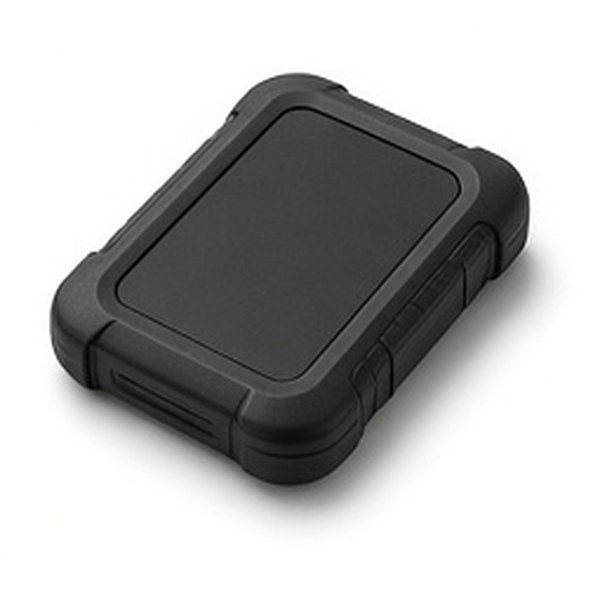
Rugged Portable Ssds
Confirm the IP rating for dust and the shock absorption design.
COMPARE OPTIONS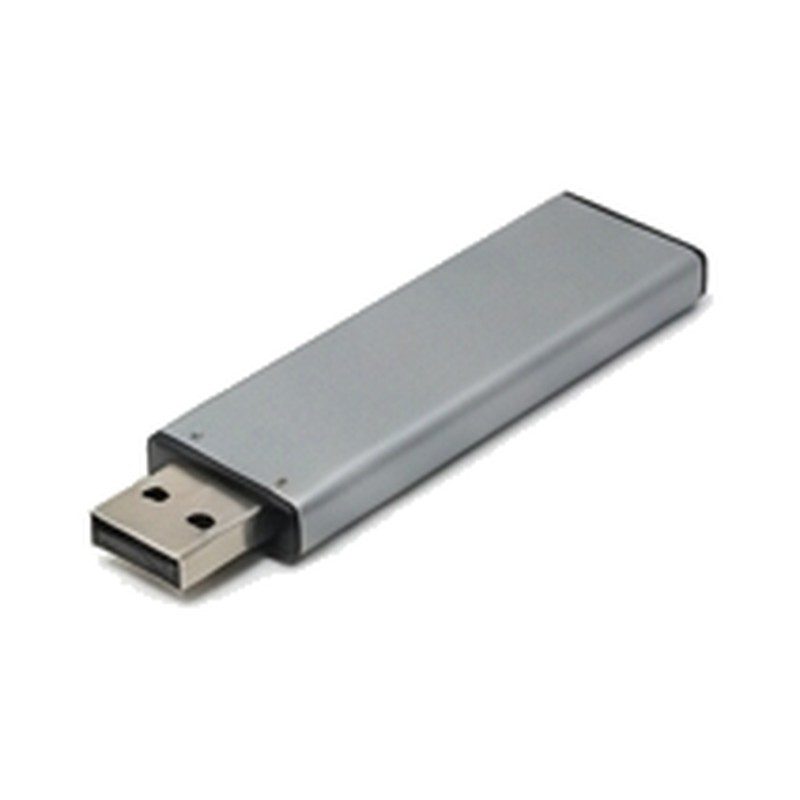
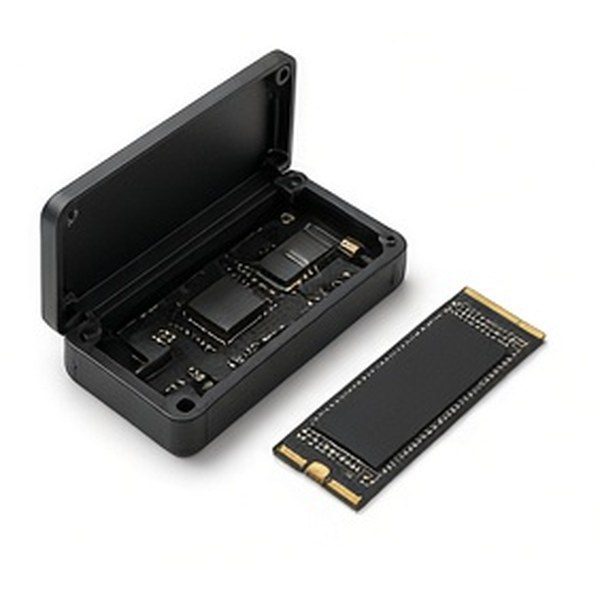
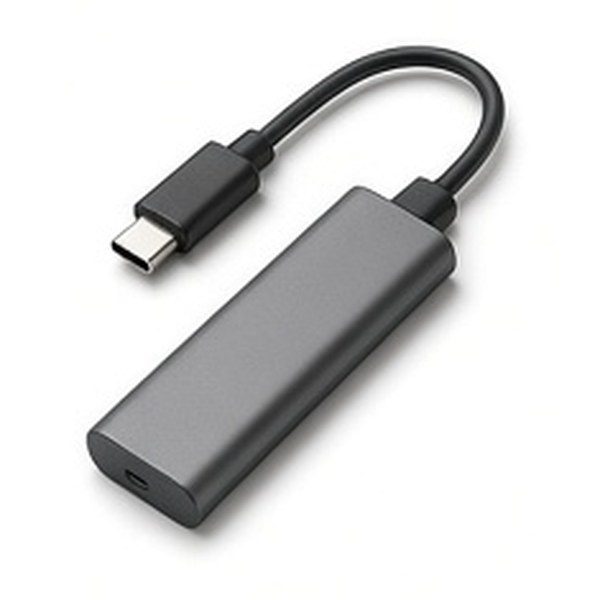
M.2 Nvme Ssd Enclosures
Verify the interface compatibility and the heat dissipation material.
COMPARE OPTIONSBefore Choosing
- Verify the interface type matches your device slot.
- Confirm the physical dimensions fit your available space.
- Check the warranty terms and the support contact details.
- Ensure the drive is compatible with your operating system.
Questions Shoppers Ask
What Is The Fastest Ssd Type?
NVMe SSDs are the fastest internal option. They use the PCIe bus for high bandwidth. The speed is significantly higher than SATA. This is ideal for gaming and heavy workloads. The latency is also very low.
Can I Use A Ssd In A Laptop?
Yes, most laptops support SSDs. The form factor must match the slot. M.2 is common in new models. SATA is common in older models. Check your laptop manual for compatibility.
Are Nvme Ssds Hotter Than Sata?
Yes, NVMe drives generate more heat. The high speed produces more energy. Adequate cooling is essential. Heat spreaders help manage the temperature. Poor cooling can reduce performance and lifespan.
Do I Need A Ssd For Gaming?
An SSD improves load times significantly. It does not increase frame rates. The game runs the same. But the world opens faster. It makes the experience smoother. It is a recommended upgrade.
How Long Do Ssds Last?
SSDs last for many years. The lifespan depends on usage. The endurance rating indicates the total writes. Typical drives last five to ten years. The warranty covers defects during this period.
Is A Portable Ssd Faster Than A Pen Drive?
Yes, portable SSDs are much faster. The speed is close to internal drives. Pen drives are slower. The difference is noticeable for large files. The SSD is the better choice for speed.