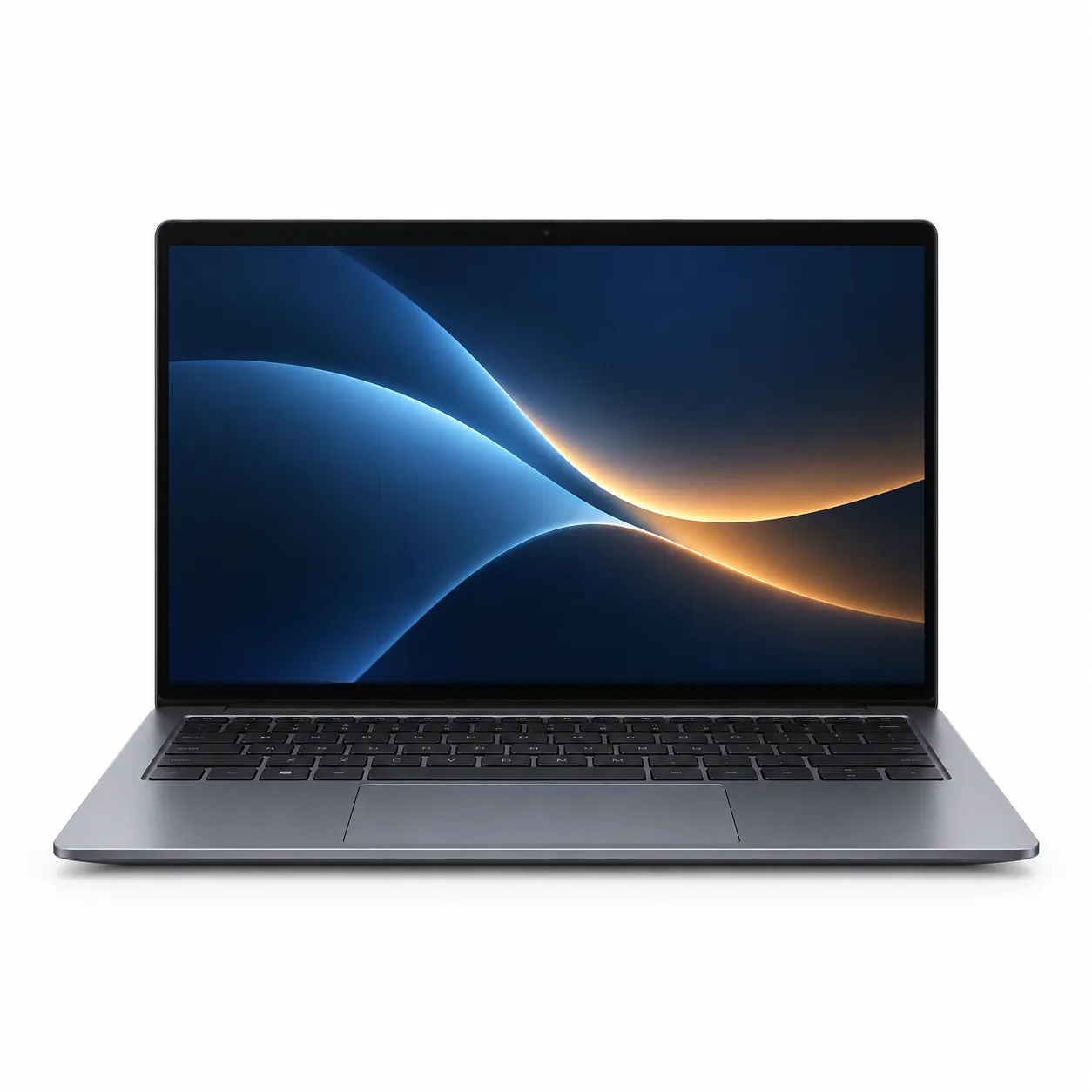
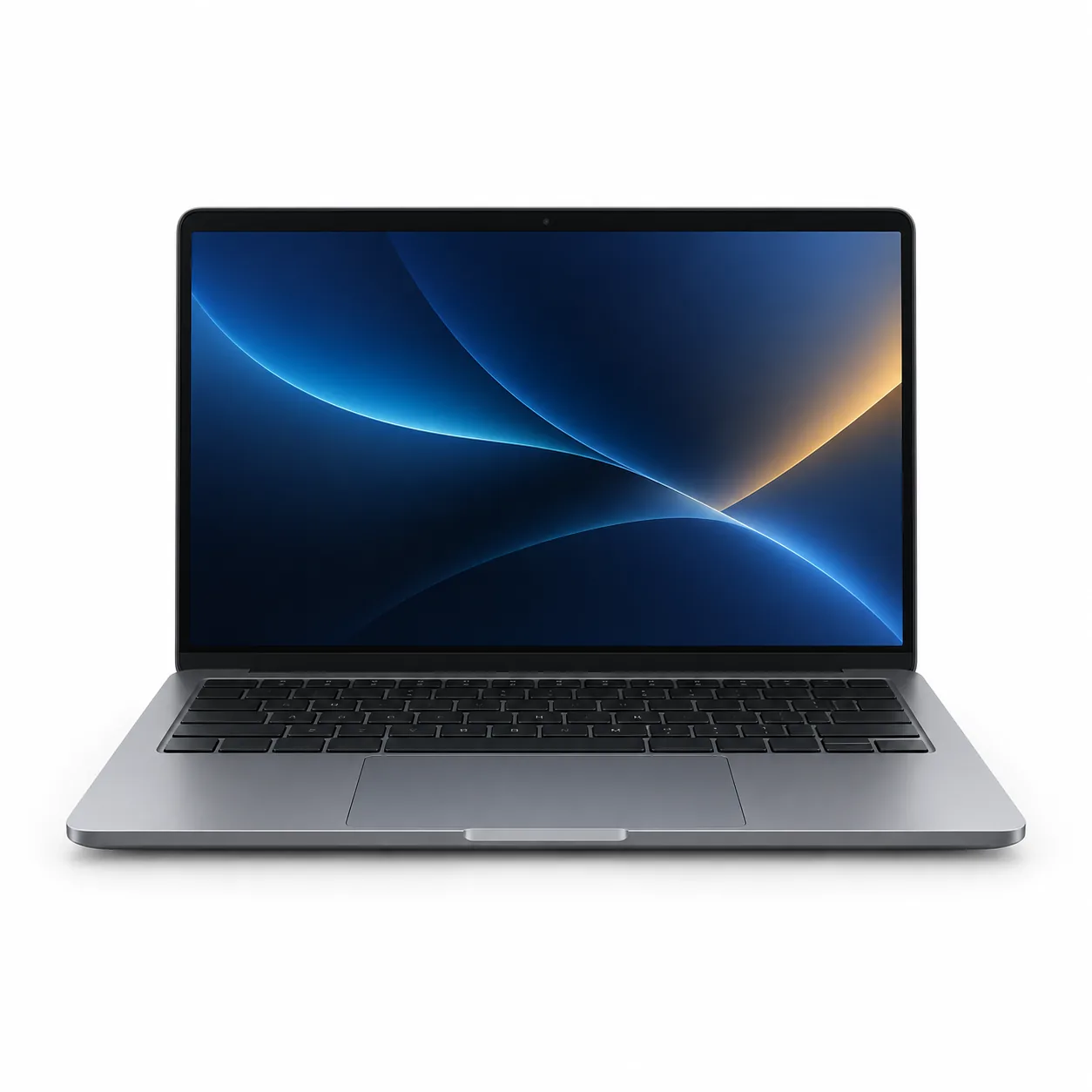
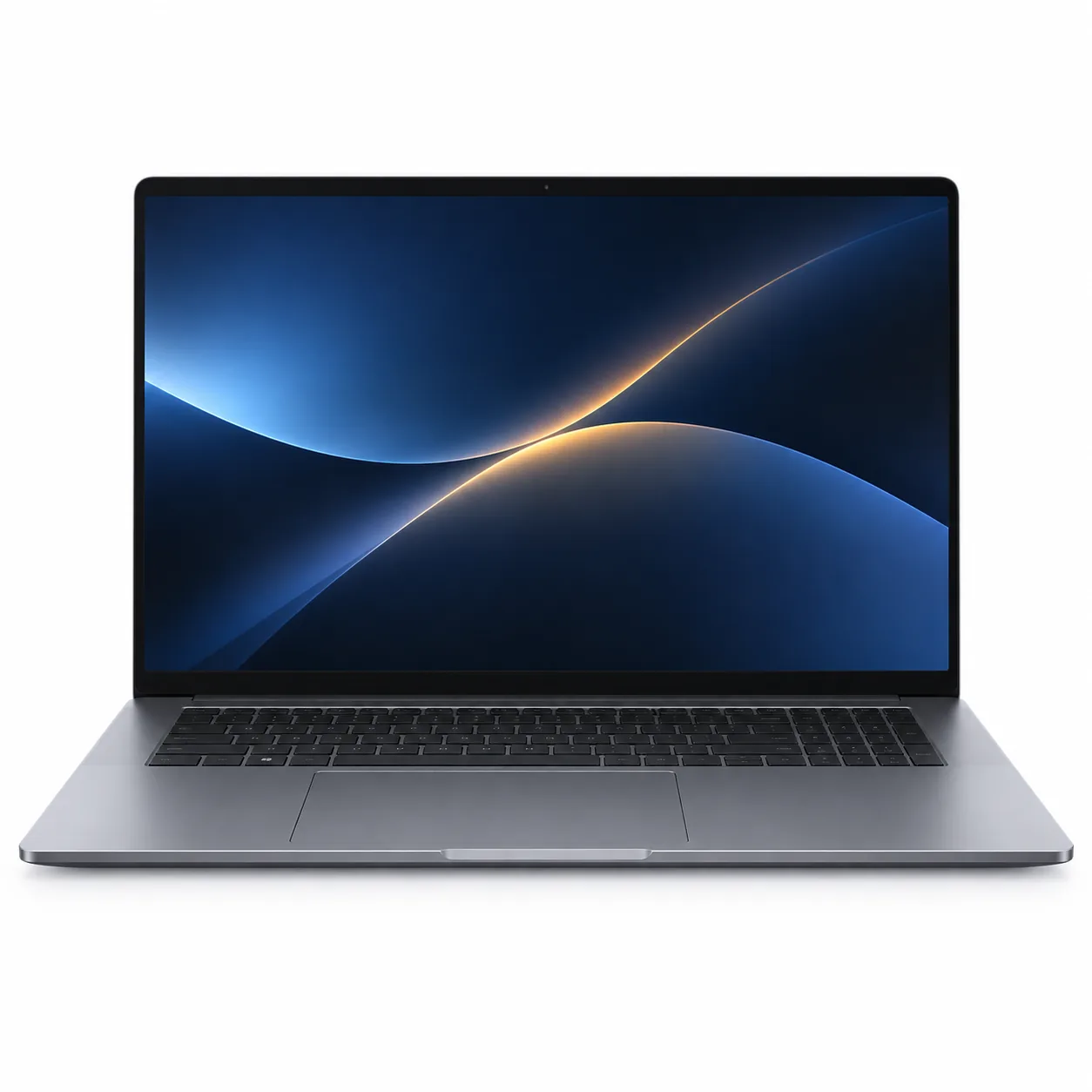
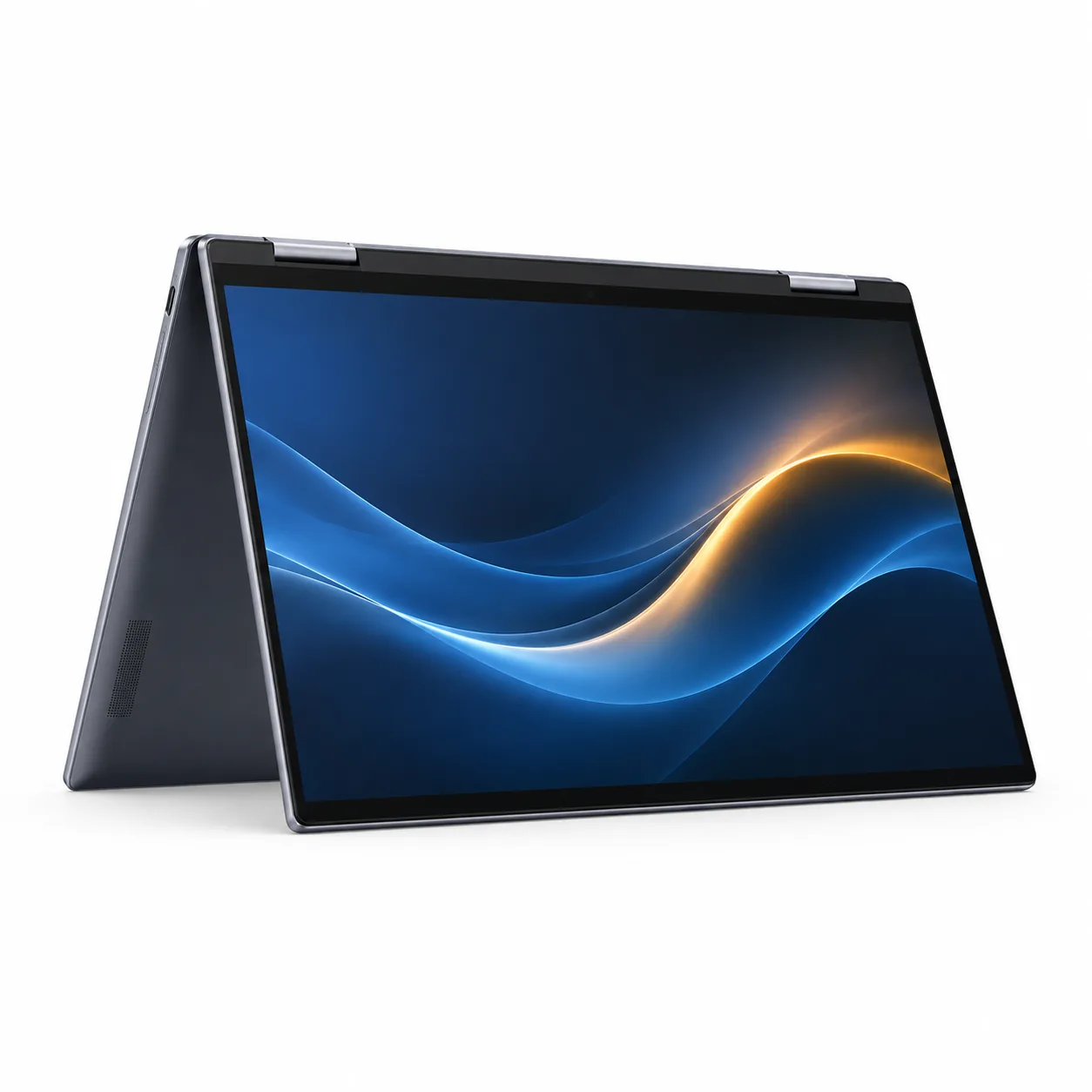
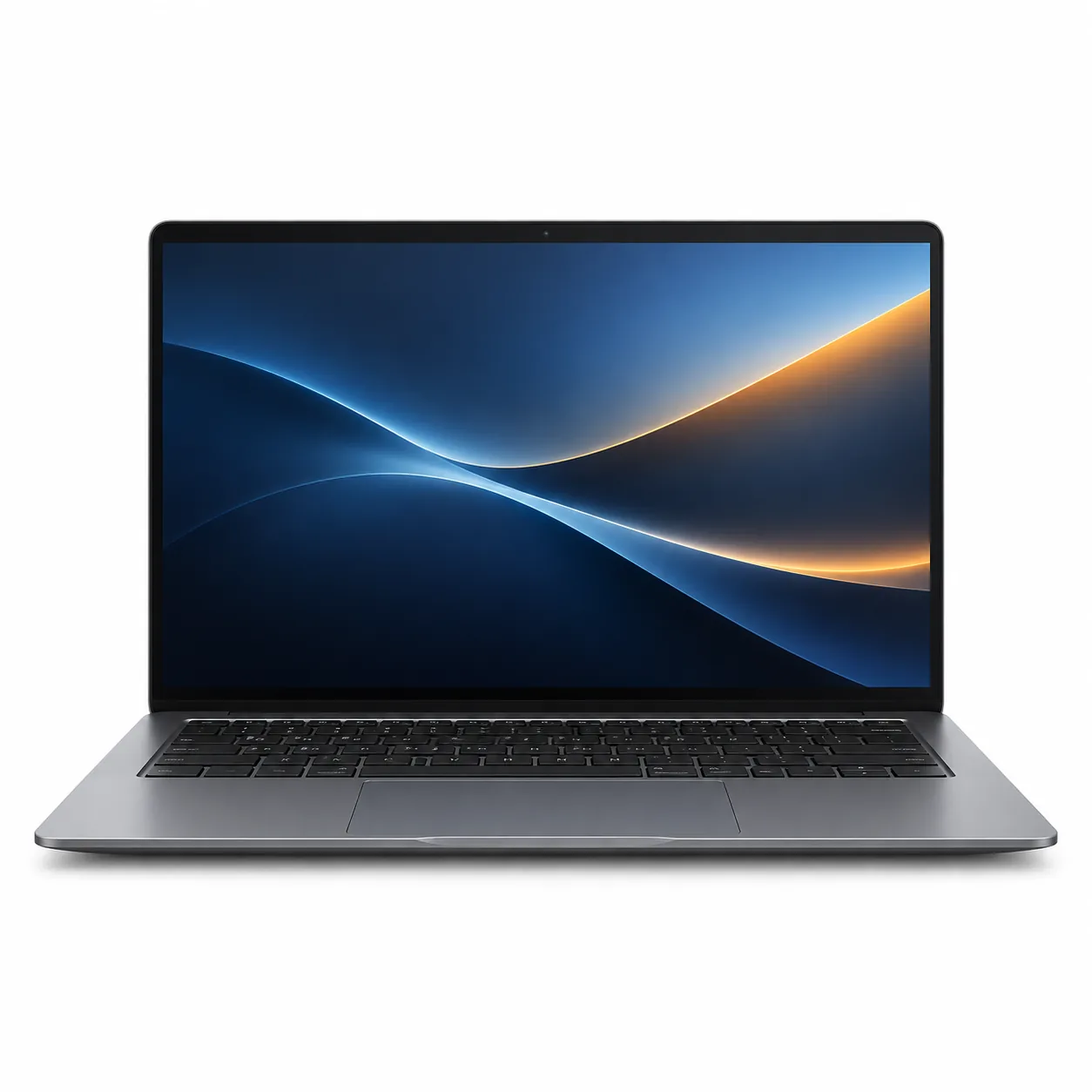
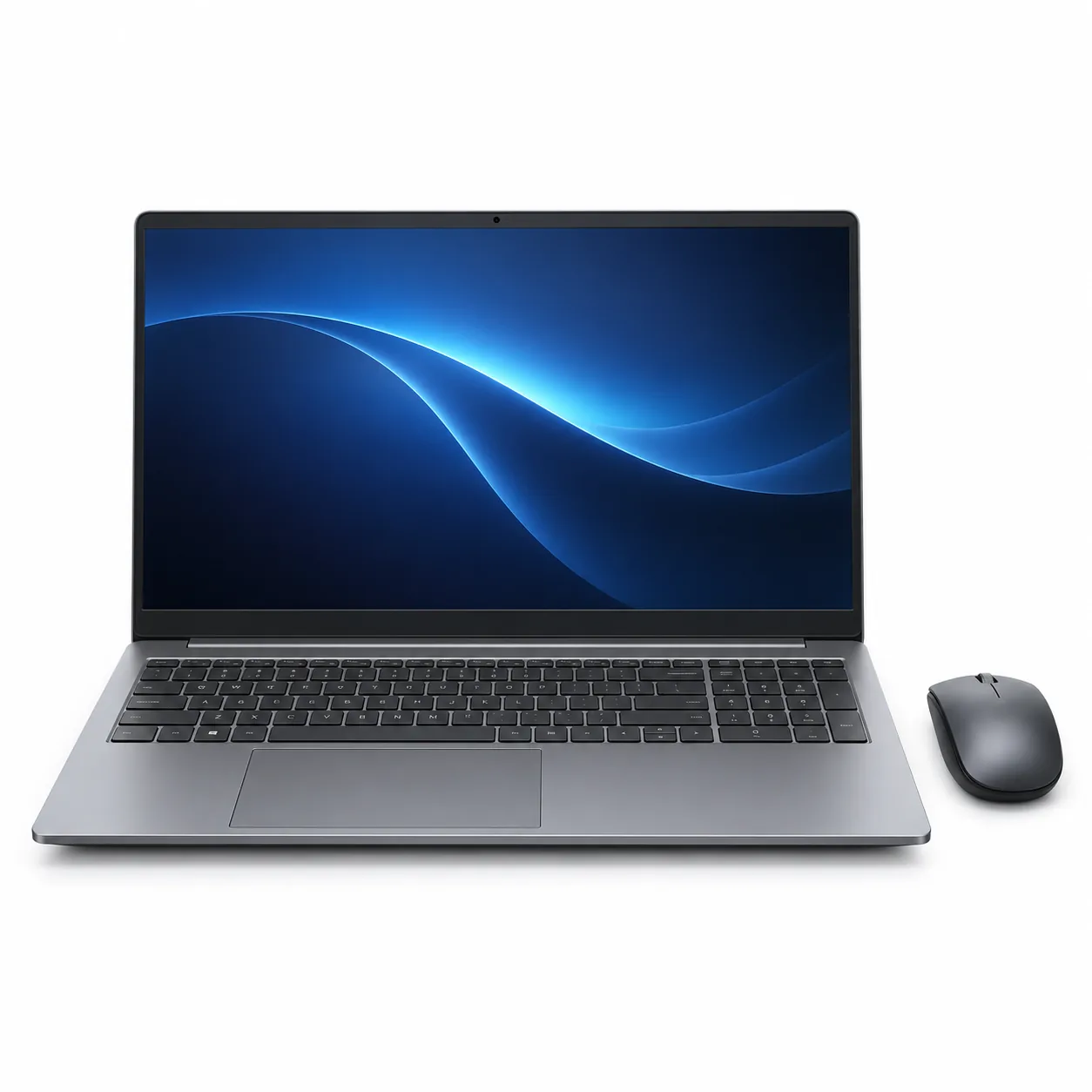
Shortlist the exact Acer laptop configuration
Acer uses familiar family names across laptops with different processors, displays, memory, storage and ports. Begin with the complete model code and selected retailer variation. Keep that identifier beside every specification you record. A photograph or review for another configuration in the same family may describe a different screen, keyboard, charger or internal layout.
Start with the place and tasks
List the applications, browser tools, accessories and accounts the computer must support. Use their published requirements to define the operating system, memory, storage and connections to check. Then measure the desk, shelf, stand and bag. Include clearance for the screen to open, cables to turn without sharp bends and ventilation areas identified in the manual.
If the laptop will regularly move between locations, record the chassis and charger dimensions as well as their separate weights. A diagonal screen measurement does not describe the complete footprint. If it will remain on one desk, compare the keyboard, touchpad, display position and access to ports with the intended seating and cable arrangement.
Identify the chassis and screen format
A traditional clamshell, convertible hinge and detachable design create different setup requirements. For a convertible, verify the supported positions, touch and pen information and whether a pen is supplied. For a detachable, identify which parts contain the ports and battery and whether the keyboard cover is part of the selected package.
Check the exact screen resolution, panel description, surface finish, touch support and refresh rate stated for the model code. Treat brightness and colour figures as manufacturer specifications measured under stated conditions. Product images are useful for seeing bezel and camera placement, but they cannot confirm panel characteristics.
Read the keyboard and input details
Confirm that the selected listing has the required UK keyboard layout. Look at the Enter key, number row, arrow keys, function row and number pad rather than relying on a generic product photograph. Backlighting, fingerprint readers, camera shutters and dedicated keys can vary within one family. Check the manufacturer's specification and manual for the exact code.
If a mouse, drawing tablet or other input device is essential, match its connector and software requirements. For pen input, check protocol support and whether the named pen is included, optional or unavailable for that display. A touchscreen alone does not establish stylus compatibility.
Compare processor, memory and storage as one configuration
Record the full processor model, installed memory and drive capacity selected together. Retailer option controls can change several of these at once. Check whether the memory description refers to installed capacity or a supported maximum, and use service information to see whether modules are removable, soldered or mixed.
For storage, note the installed drive type and capacity and whether the documentation identifies another internal slot or a supported memory-card format. Do not infer expansion from a family review or an image of the base. If access requires opening the computer, follow the model's service and warranty instructions or use the support route the manufacturer specifies.
Map every port to existing equipment
Make a list of the monitor, projector, storage drive, phone, headset, network cable and other accessories that need a connection. Match each one to the location and capability of a stated port. USB-C describes the connector shape; charging, display output and transfer standards must be confirmed separately for that exact port.
If a dock or adaptor is required, verify its compatibility and power requirements and add it to the desk-space comparison. Check the display resolution and refresh combinations supported through the intended output. For wireless equipment, compare the listed Wi-Fi and Bluetooth versions with the router and accessories without treating those specifications as a guarantee of network performance.
Confirm power, charger and battery wording
Check the supplied adaptor's connector and stated power rating. A compatible-looking USB-C charger may not provide the capability required by the laptop, so use Acer's model documentation. If travel adaptors or spare chargers are considered, verify the input, output and cable requirements rather than matching the plug shape alone.
Battery figures may describe a manufacturer test with defined brightness, network and application settings. Read the test notes and distinguish capacity, video playback, browsing and general-use claims. They support comparison between listings but do not promise a particular person's runtime. For a used or refurbished unit, use only the condition and battery information supplied for that unit.
Check operating system, updates and recovery
Confirm the operating-system edition and mode supplied, especially where required applications need a particular edition or installation method. Review Acer's support page for the exact model code to locate manuals, drivers, firmware and recovery guidance. A similarly named model may have different downloads.
If the laptop will join a school or workplace system, ask the organisation which edition, security controls and enrolment process it supports. Check any included trial or subscription separately, including its term and renewal conditions. Bundled software should not be confused with a permanent operating-system licence.
Review camera, audio and privacy controls
Video-call requirements involve more than the presence of a webcam. Check the stated camera resolution, microphone arrangement, speaker and headset connections for the exact model. If a camera shutter, microphone-mute key or status light matters, confirm it in the manual rather than identifying it from a small photograph.
Match a wired headset to the available combined or separate audio sockets. For USB or Bluetooth headsets, check port capability, operating-system support and any required software. If an external camera or microphone is planned, include its mount, cable and adaptor in the desk layout.
Review the operating system's privacy and permission controls during setup. A physical shutter or mute control and a software permission perform different roles, so record which controls the model actually supplies. Avoid assuming that a family name includes the same camera or sign-in hardware across every configuration.
Verify everything included in the selected package
Use the written contents list to confirm the laptop, charger, regional cable, documentation and any pen, sleeve, mouse or adaptor. Lifestyle images often show accessories for scale or demonstrate a possible setup. Changing the colour or bundle can also change the stock code and included items while leaving the family title unchanged.
Check packaged dimensions, weight and carton count where supplied. On delivery, compare the model label, keyboard, charger and contents with the order before transferring files or discarding packaging. Follow the initial setup and inspection instructions, and report transit damage or missing parts through the seller's stated process.
Review support, returns and warranty
Read the seller's current return terms for the exact listing and the manufacturer's warranty document for the selected region. These are separate arrangements. Note the duration, proof-of-purchase requirements, excluded items and stated route for service. If upgrade access matters, check how opening the case or replacing parts affects support.
For refurbished listings, identify who performed the refurbishment, the stated cosmetic grade, included charger and seller warranty. Do not transfer warranty or battery statements from a new retail configuration unless the listing expressly applies them to the refurbished unit.
Final questions for an Acer laptop listing
- What complete Acer model code, retailer stock code and variation are selected?
- Which processor, memory, storage and operating-system edition are supplied together?
- What are the chassis, screen, keyboard and touch or pen details?
- What does each USB-C port support, and which adaptors are required?
- Is the stated charger included and correctly rated for this model?
- Which accessories in the photographs are actually in the package?
- Where are the model-specific manual, updates and recovery instructions?
- What packaged weight, delivery, return and transit-damage terms apply?
- Who provides the warranty and service route for this exact listing?